
Fields, Columns & Sections
Every mailbox has a schema: the list of fields you want pulled out of each document, and how those fields are organized. The schema is what the AI reads from to know what to extract, and it is exactly what determines the columns and rows of your synced spreadsheet.
You edit the schema on a mailbox’s Fields tab. This guide explains the two kinds of fields, how they become spreadsheet rows, and every option you can set on a field — including computed formulas and validation rules.
Header fields vs. repeating sections
Section titled “Header fields vs. repeating sections”There are two kinds of fields, and the difference is simply how many values a single document has.
- Header fields — captured once per document. An invoice has one invoice number, one date, one total. These are the document’s top-level facts.
- Repeating sections — a table that repeats. An invoice has many line items; a timesheet has many employees; a daily report has many crew members. A section is a group of columns that produces one row per entry.
A mailbox always has a header (the per-document fields) and may have zero or more repeating sections.
graph TD
    subgraph "One Invoice (a document)"
      H["Header fields (once)<br/>invoice_number · date · total"]
      S["Repeating section: line_items (many)<br/>description · qty · unit_price · line_total"]
    end
    H --> R1["Header sheet → 1 row"]
    S --> R2["line_items sheet → 1 row per line"]
Rule of thumb: if a value appears exactly once on the page, it’s a header field. If it appears in a list, table, or grid that can have any number of rows, it belongs in a repeating section.
The Fields tab shows the per-document header columns at the top and each repeating section below it, with a live preview of the form on the right.
How fields become spreadsheet rows
Section titled “How fields become spreadsheet rows”When a mailbox is linked to Google Sheets or Excel (see Destinations), the schema maps to the workbook like this:
- One
Headersheet holds one row per document — its columns are your header fields. - One sheet per repeating section (named after the section) holds one row per entry, with the document’s header values merged onto every row so each line is self-contained (you can sort and filter the line-items sheet without losing which invoice each line came from).
- Every sheet is laid out as
document_id | extractedAt | …your fields… | driveLink, plus a hidden sync-key column. Field columns use the display label, annotated with the unit when one is set (e.g.Hours Worked (hours)). - Computed (formula) fields are calculated during sync and written as plain values.
A “document” here is one record — an entire email with all its attachments, an uploaded file (or a combined upload), or a manual entry. See how multiple files become one record.
Splitting into separate spreadsheets
Section titled “Splitting into separate spreadsheets”A header field can also be marked as a split key, which sends each distinct value to its own spreadsheet (and its own Drive/OneDrive folder). For example, splitting by month keeps each month’s invoices in a separate workbook. Date fields split by year, month, or day; other fields split by exact value. Split keys must be header fields and cannot be computed (formula) fields.
Configuring a field
Section titled “Configuring a field”Select any column on the Fields tab to open the field inspector. Here is what every option does.
A numeric field has a Value source toggle — Extracted (the AI reads it from the document) or Computed (the app calculates it from a formula). The inspector shows the options that fit the chosen source: an extracted field has an AI hint and can have a validation rule; a computed field has a formula instead (and no hint or validation, since it isn’t read from the document). The screenshot below shows a computed field.
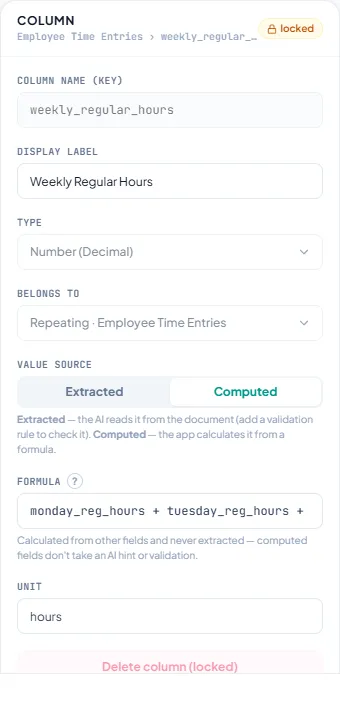
| Option | What it does |
|---|---|
| Column name (key) | The field’s stable identifier (e.g. invoice_total). Must start with a letter and use only letters, digits, and underscores; it must be unique across the header and every section. The key is locked once documents have been extracted so stored data stays aligned — edit the display label instead. |
| Display label | The human-friendly name shown in the dashboard and used as the spreadsheet column heading (e.g. Invoice Total). Always editable. |
| Type | How the value is interpreted and normalized — see Field types below. Locked once documents exist. |
| Belongs to | Whether the field is a per-document header field or part of a repeating section. You can move a field between scopes here (until documents exist). |
| Value source (numeric fields) | Extracted — the AI reads the value from the document. Computed — the app calculates it from a formula. Non-numeric fields are always extracted. |
| Unit (numeric) | The unit of measure (hours, miles) or, for currency, the 3-letter ISO code (USD). Shown next to the value and appended to the spreadsheet column heading. |
| Hint to the AI (extracted) | Free-text guidance on how to find or interpret the field — alternate labels, formats, or where it appears (e.g. “may be labeled Company or Bill To”). Steers extraction; never stored as data. Computed fields don’t have a hint (they aren’t read from the document). |
| Required field (extracted) | When checked, an empty value is flagged as an error for review. Leave unchecked for fields that are often absent. |
| Allowed values | For Choice (enum) fields, the comma-separated vocabulary (max 24). Once documents exist you can add values but not remove them. In Google Sheets these become an in-cell dropdown. |
| Split into separate spreadsheets | Marks a header field as a split key; date fields also choose a Year / Month / Day interval. |
| Formula (computed) | The expression the app evaluates to fill this field — see Computed fields. |
| Validation (extracted) | Adds one validation rule — Email, US ZIP, Regex, or Formula — with an optional custom error message. |
Editing after data exists: to protect already-extracted rows, a field’s key, type, and section are locked once a mailbox has processed documents, and existing sections can’t be removed. You can always add new fields and sections, edit labels and hints, rearrange the layout, and adjust formulas and validators. Delete the mailbox’s documents to unlock everything.
Field types
Section titled “Field types”The type controls how each extracted value is normalized and validated.
| Type | Use for | Notes |
|---|---|---|
| Text | Names, descriptions, IDs, free text | No normalization. |
| Number (Decimal) | Hours, quantities, measurements | Parsed to a decimal; can carry a unit. |
| Integer (Whole Number) | Counts, quantities | Whole numbers only. |
| Currency | Monetary amounts | Parsed to a number; unit is the 3-letter ISO code (e.g. USD). |
| Date | Calendar dates | Normalized to a standard date. |
| Time | Clock times | Normalized to a standard time. |
| Date & Time | Timestamps | Combined date and time. |
| Boolean (Yes/No) | Checkboxes, paid/unpaid flags | Interpreted as true/false. |
| Choice (Enum) | A small fixed set of options (status, role) | Constrained to the Allowed values list; out-of-list values are kept but flagged with a warning. |
| Address / Location | Postal addresses, sites | Treated as a single address value. |
Only Number, Integer, and Currency fields can have a formula or a unit.
Computed fields (formulas)
Section titled “Computed fields (formulas)”Any numeric column can be a computed field instead of an extracted one: you write a formula and DocsToSheets calculates the value at projection/sync time. Computed fields are never asked of the AI and never stored — they’re always recalculated from the fields they depend on, so they stay consistent.
To make a field computed, set its Value source to Computed in the field inspector and enter a Formula. The editor validates the syntax as you type. (Switch back to Extracted to have the AI read the value from the document instead.)
Grammar
Section titled “Grammar”Formulas support:
- Numbers and the operators
+-*/, with parentheses for grouping. round(value, decimals)— half-away-from-zero rounding, e.g.round(amount / count, 2).- References to other fields in the same scope — a header formula sees the other header fields; a section column sees the other columns in its own row. (A formula can’t reference another formula field.)
reg_hours + ot_hoursround(quantity * unit_price, 2)Reaching across scopes
Section titled “Reaching across scopes”Two shortcuts cross the header/section boundary:
-
Total a section column (header fields only). A header field can roll up a repeating section with
sum,count,avg,min, ormax, using asection_id.columnpath:sum(line_items.line_total) # invoice grand totalavg(line_items.unit_price) -
Read a header value (section columns only). A section column can read a document-level field with
header.field:base_amount * header.tax_rate
Aggregates are only allowed on header fields; header. access is only allowed on section columns. Both are checked when you save the mailbox.
How blanks are handled
Section titled “How blanks are handled”- In a computed field, an empty (blank) cell counts as
0— so a weekly total likemon + … + sunstill adds up even when some days are left blank, exactly like a spreadsheet. A value that is present but not a number (e.g."n/a") leaves the result blank so the bad value is noticeable. - For aggregates over a section, empty rows are skipped:
count/avg/min/maxignore blank entries rather than treating them as 0. When a table has no rows at all,sumandcountare0andavg/min/maxare blank.
Validation rules
Section titled “Validation rules”An extracted field can carry at most one validation rule (a computed field has its formula instead). Validation marks extracted, manual, or edited values for review — it never invents or changes a value, and empty optional fields stay valid.
| Rule | Checks |
|---|---|
| The value looks like a valid email address. | |
| US ZIP | 12345 or 12345-6789. |
| Regex | A full-value pattern match for stable IDs or codes (e.g. INV-\d{6}). Patterns are length-limited and reject unsafe constructs. |
| Formula | A numeric comparison — ==, !=, <, <=, >, >= — between two formula expressions. |
A formula validator can use the same cross-scope forms as computed fields, which makes it ideal for consistency checks:
total == quantity * unit_price # same-row checkinvoice_total == sum(line_items.line_total) # header total vs. the sum of a section columnYou can add a custom error message to any rule.
Warnings vs. errors, and blanks. A failed check is an error (the row is flagged invalid for review). If a field a formula validator references is blank, the rule is reported as “could not be evaluated” — a warning, not an error — so an incomplete record isn’t marked invalid just for having an empty field. (This is the opposite of computed fields, where a blank counts as 0.)
Putting it together
Section titled “Putting it together”A field service invoice mailbox might look like this:
- Header fields:
invoice_number(text, regexINV-\d+),invoice_date(date, split key by month),customer_name(text),invoice_total(currency, formula validatorinvoice_total == sum(line_items.line_total)). - Repeating section
line_items:description(text),quantity(integer),unit_price(currency),line_total(currency, computedquantity * unit_price).
Synced to a spreadsheet, that produces a Header sheet with one row per invoice and a line_items sheet with one row per line — each line carrying its invoice’s header values — with the grand total automatically checked against the sum of the lines.